

Compatible with Ableton Suite with Max for Live
Processed by Lemon Squeezy • Instant download • Support included
Smart Harmonizer Basic by exaltron
Features
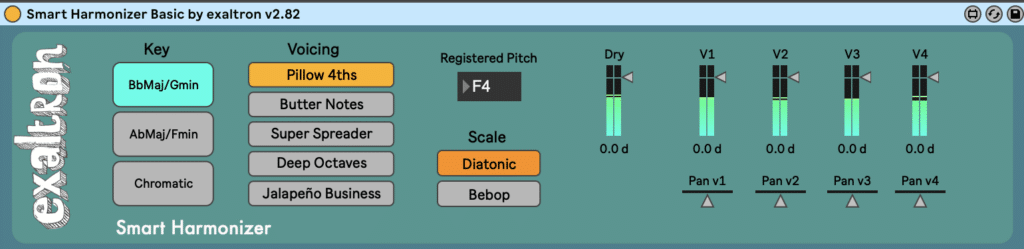
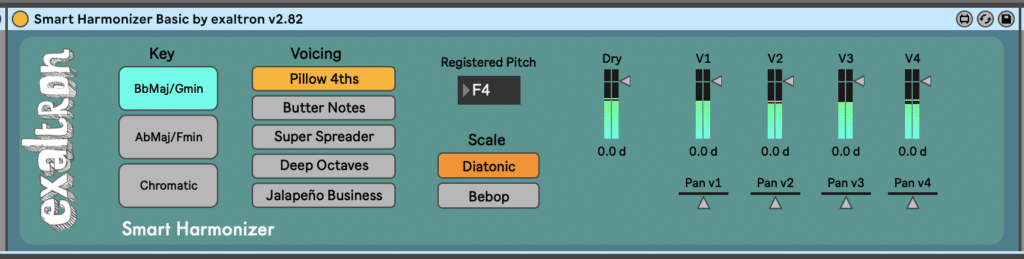
Harmonizer Basic
Free- Pay What You Want
Keys: Bb, Ab and Chromatic
Five Custom Voicings
No Glide
Basic Ableton Midi Learn Function
Limited Support
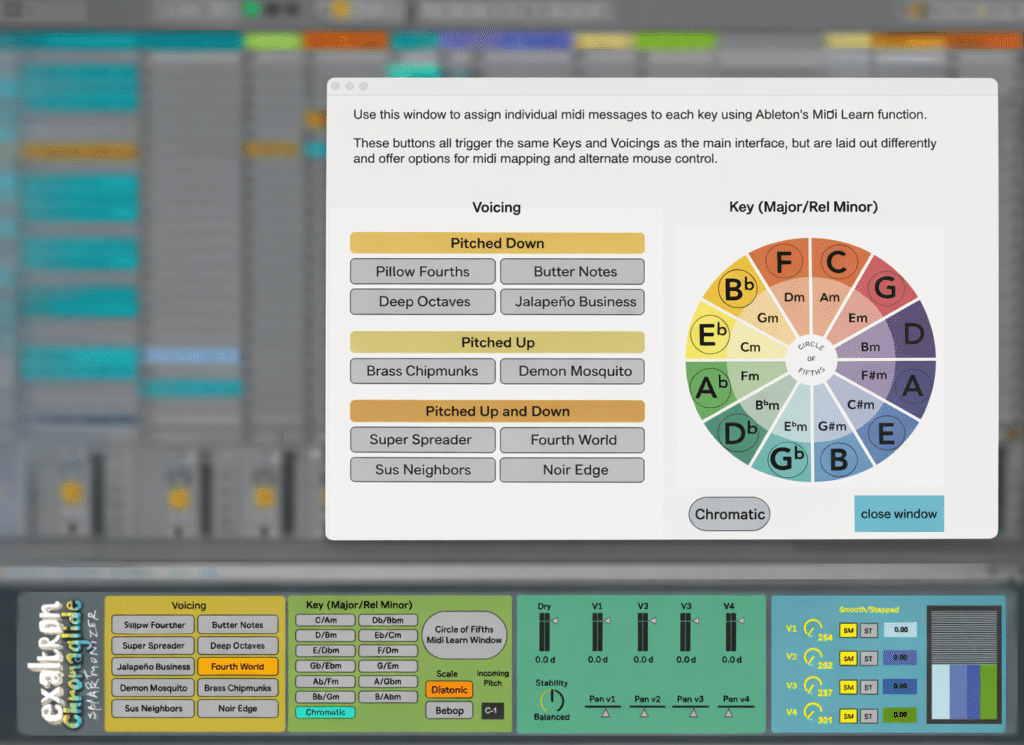
Chromaglide Pro

$20
All 12 Keys plus Chromatic
10 Voicings (plus one secret voicing)
Independent Glide for each of 4 voices; Smooth or Stepped
Advanced Midi Learn with Circle of Fifths
Personal email Support within 48 hours
A smart harmonizer takes incoming monophonic audio and adds transposed pitches according to a set of intervals (Voicings), which are corrected or “snapped” diatonically to a selected Key.
Chromaglide is an experimental harmonizer focused on unique and creative approaches to harmonization. It’s designed for ease of use, with little to no music theory required to have fun with it. Its sound is defined by specific voicings and the Glide feature, developed over many years of experimentation and appreciation for pioneering artists like Jon Hassell and Hal Crook as well as more recently emerging artists using harmonizers on horns, guitar, voice and strings.
Have fun! And if for any reason you don’t love it, send me a message in the first 30 days and I will refund your payment.
Requirements:
Ableton Live 11 or 12 Suite with Max for Live
Mac OS
*Windows should also work but has not been tested extensively
*Live 10 has worked for some users but can’t be guaranteed
Installation:
- Unzip the download.
- Move the entire Chromaglide package folder [Chromaglide Smart Harmonizer by exaltron] to one of two locations based on your OS:
- macOS: ~/Documents/Max 8/Packages/
- Windows: C:\Users\\Documents\Max 8\Packages\
- Start up or restart Ableton so Live/Max can rescan (may take two restarts).
- In Ableton Live’s Browser, open User Library, then drag the [Chromaglide Smart Harmonizer by exaltron.amxd] file from Finder into User Library (or into a subfolder you create there, e.g. User Library/Chromaglide/.
- The device will now appear in the Live Browser, so you won’t need to drag it from Finder again.
For best performance:
Ableton stuff:
- Make sure to only use monophonic audio or midi (one note at a time). Chords and harmonies fed into the harmonizer generally won’t sound great as it is only capable of analyzing one note at a time.
If you need clarification on what is monophonic vs polyphonic audio, this YouTube video provides a fun ELI5 explainer. - Works and sounds best with 64–256 buffer (lower latency helps tracking)
- Use the faders to raise/lower voices and set the wet/dry ratio
Input and use:
- Make sure to hover over different buttons and sections for hints and use Ableton’s “Info View” for additional explanations I’ve embedded in the device
- Typically use mono input with stereo output. Each voice can be panned L/R
- Stereo input possible but won’t add much and doubles processor burden
Choose a Key signature and a set of four transpositions per incoming note, which will be corrected based on the selected Key.
“Octaves Only” voicings work best with “Chromatic” mode selected in the Key section since any Key quantization would just work against you. These are: Deep Octaves and Demon Mosquito
Transposing down: Pillow Fourths, Butter Notes, Deep Octaves, Jalapeño Business
Transposing up: Demon Mosquito, Brass Chipmunks
Up/down mixed: Super Spreader, Fourth World, Sus Neighbors, Noir Edge